

Pairing
SCI makes it easy to connect your POS with an EFTPOS payment terminal. This is known as ‘pairing’.
Pairing flow
- The merchant initiates pairing on the EFTPOS terminal. A pairing code is displayed on the terminal screen.
- The merchant will enter the pairing code onto your POS.
- Your POS calls
POST /v1/progress-pairingwith the pairing code entered by the merchant. - On success, the API returns a pairing response (see fields below). Your POS must store these values.
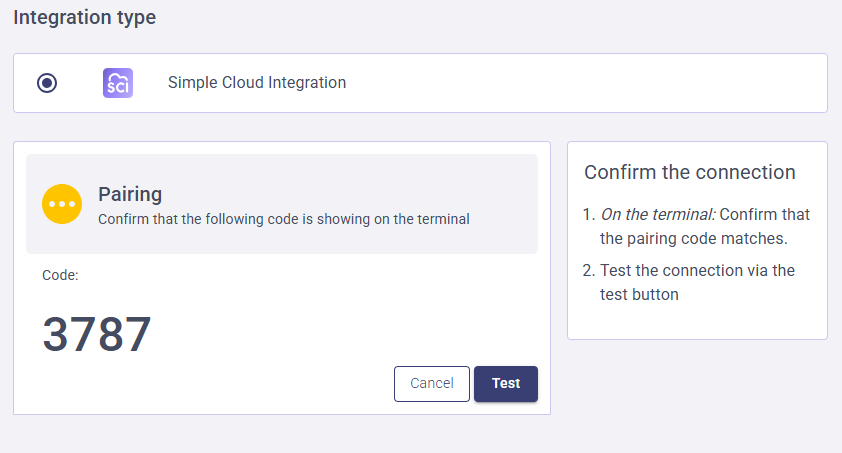
- A confirmation code is displayed in the API response and simultaneously on the terminal. The merchant verifies they match, then confirms on the terminal to complete the pairing. The pairing becomes active only once the confirmation is completed on the terminal.
- Your POS will display a test button which calls
GET /v1/pairing-info. - The merchant will test that the pairing is active to finalise the pairing as successful.
Request
POST https://sci-pairing-api.integrations.mx51.io/v1/progress-pairing

{
  "pairing_code": "123456",
  "pairing_nickname": "Front Bar" //Optional
}| Field | Required | Description |
|---|---|---|
pairing_code | Yes | The code displayed on the terminal |
pairing_nickname | No | A label to help identify this pairing in your POS which is especially useful in multi-POS setups (e.g. "Front Bar") |
Response
{
  "data": {
    "pairing_id": "pid_b6f1242d-9a69-4991-aa67-79d5bd49235a",
    "key_id": "kid_1a049709-65d4-480d-bdf0-f3e49699c67b",
    "confirmation_code": "1234",
    "signing_secret_part_b": "5b1e070927ddb9fe5931e7e2aaaad5c1",
    "sci_api_base_url": "https://sci-api.<tenant-specific-domain>",
    "tid": "tid123",
    "pairing_nickname": "Front Bar",
    "terminal_nickname": "Terminal 123"
  }
}| Field | Description |
|---|---|
pairing_id | Unique identifier for this pairing |
key_id | Used as keyid in all SCI API request signatures |
confirmation_code | Displayed on the terminal simultaneously - merchant verifies they match before confirming |
signing_secret_part_b | Combine with your Signing Secret Part A to form the full Signing Secret for this pairing |
sci_api_base_url | Must be stored per pairing. The base URL for all SCI API requests for this terminal. Different terminals may return different URLs. |
tid | The TID assigned to the terminal |
pairing_nickname | The pairing nickname provided in the request |
terminal_nickname | The terminal nickname configured on the terminal |
Checking pairing status
Before navigating to the pairing section of your POS and before initiating a transaction, call GET /pairing-info to verify the pairing is still active:
200 OK- pairing is active401withno_active_pairings_found- pairing is not longer active; display an unpaired state and prompt the merchant to re-pair from the terminal
Unpairing
To remove a pairing, call POST /v1/unpair. A successful response returns 204 No Content.
Pairing error reference
| HTTP | Error code | Description | Resolution |
|---|---|---|---|
| 400 | invalid_request | Missing pairing_code or invalid value | Check request fields |
| 401 | api_key_invalid | Invalid Pairing API Secret Key | Verify your API key |
| 401 | api_key_missing | Authorization header missing | Add the Authorization: ApiKey [key] header |
| 403 | pairing_route_forbidden | Terminal not connected to an authorised tenant | Ensure you are using a terminal in an authorised environment |
| 403 | test_api_key_forbidden_for_live_pairing | Test key used against a live environment | Use your live Pairing API Secret Key |
| 404 | pairing_not_found | Pairing code not found | Check the code entered by the merchant |
| 422 | pairing_not_initial | Pairing already progressed, expired, or revoked | Restart the pairing process from the terminal |
Pairing UI requirements
Your POS pairing screen must meet the following requirements for certification.
Unpaired state
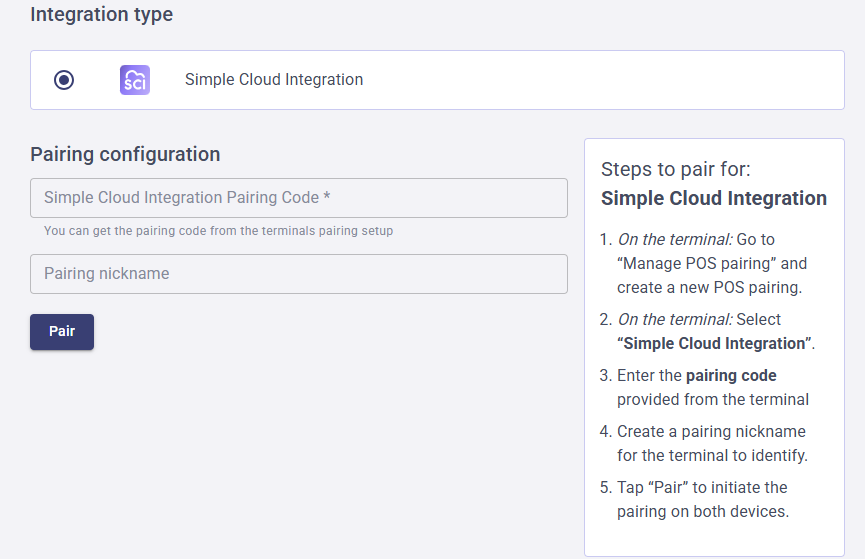
The pairing screen must display:
- A Pairing Code input field - mandatory
- A Pairing Nickname input field - optional
- SCI branding - the name "Simple Cloud Integration" must be displayed, along with the SCI logo below.
- Contact
[email protected]to request other brand assets.
- Contact

- Pairing instructions - recommended; show the merchant how to initiate pairing from the terminal (optional for certification — SCIPAIRING09)
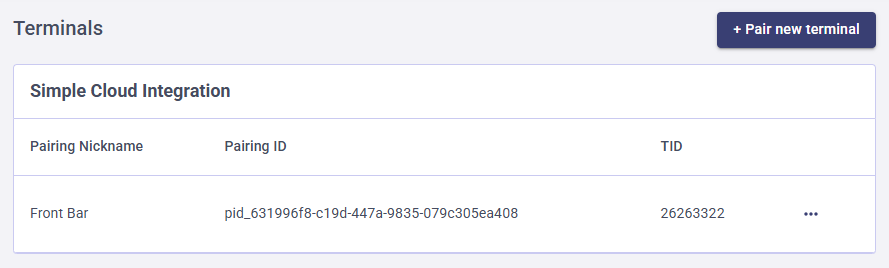
Paired state
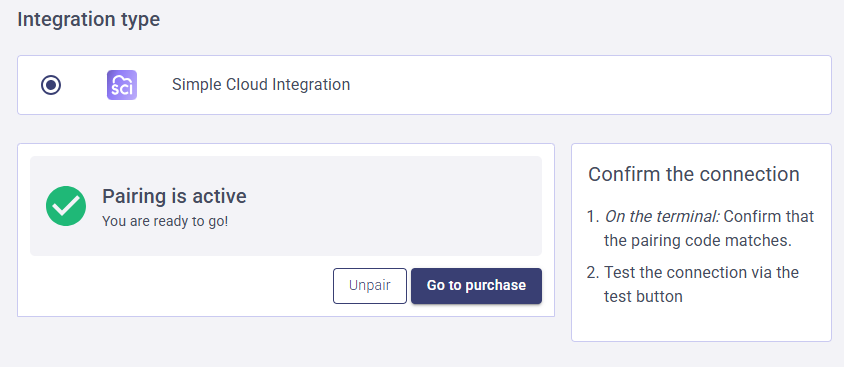
Once pairing is complete, the screen must display:
- A success message - mandatory
- Pairing Nickname and Pairing ID - mandatory
- TID and Terminal Nickname - optional
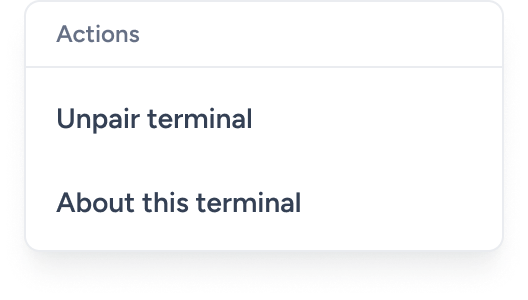
- An Unpair button - mandatory
Error states
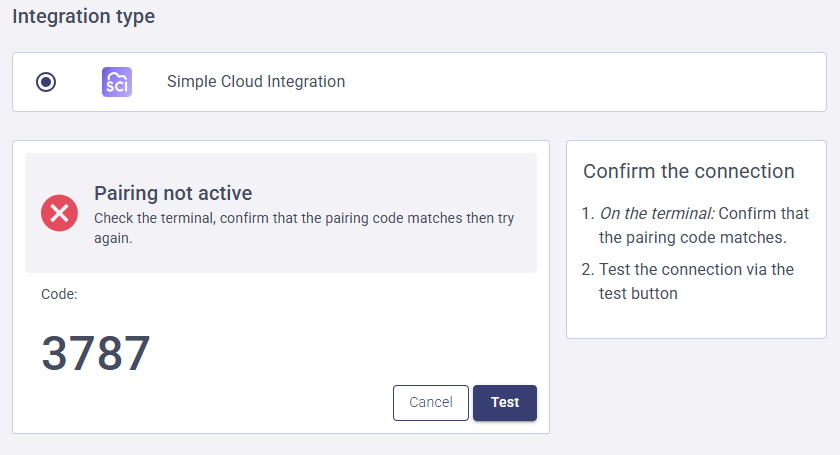
Your POS must handle and display the following error states:
| Scenario | Required display |
|---|---|
| Invalid pairing code entered | Error from API: "Pairing not found: Pairing not found" |
| Network/connectivity failure | Suggested: "Please check network and terminal connections and try again" |
| Pairing has been unpaired externally | Clear error shown when navigating to the pairing section or before initiating a transaction (detected via GET /pairing-info) |
Updated 7 months ago